
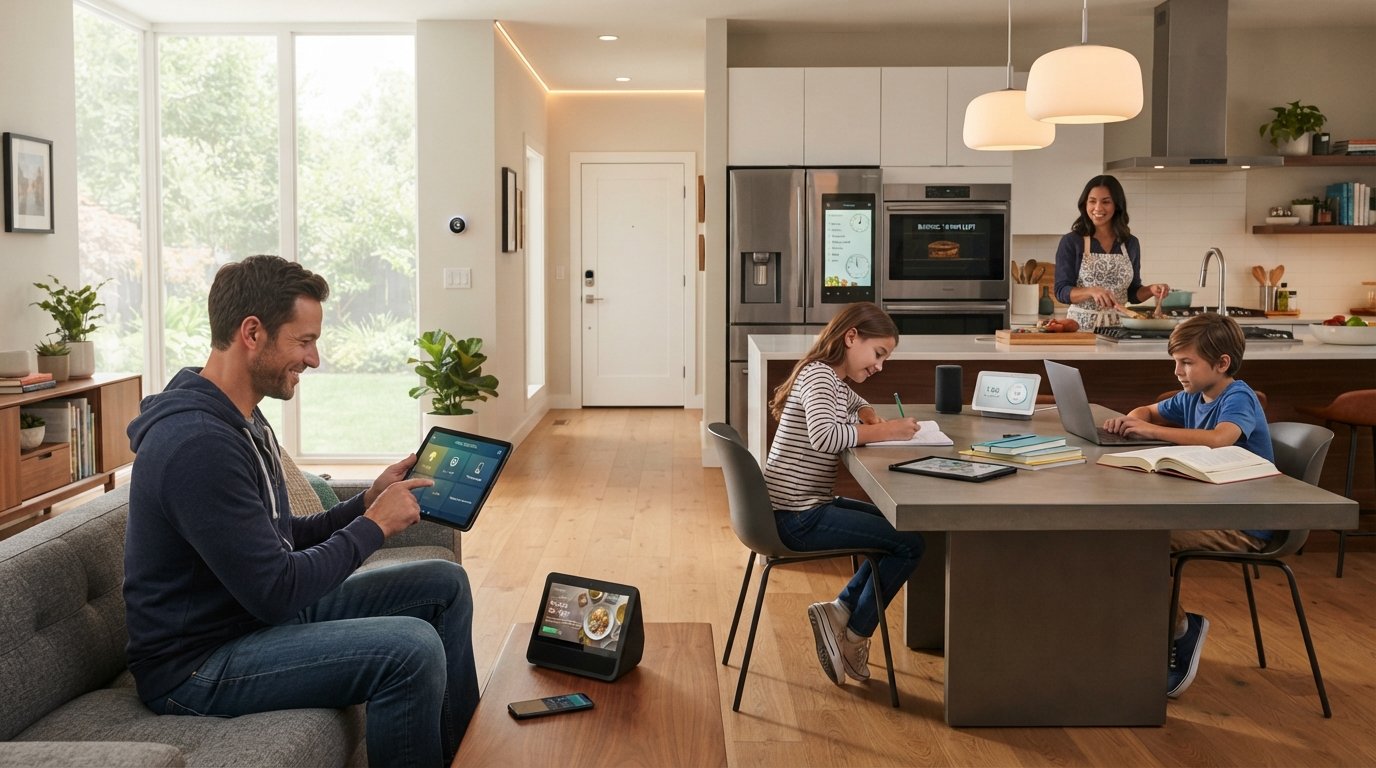
Smart speakers and video doorbells are familiar, but other devices can handle everyday home tasks. If you water a garden, share entry with guests, or manage a busy household, small changes can save time and reduce hassle.
These five ideas cover outdoor watering, entry security, indoor comfort, a shared screen, and outlet control. They may suit homeowners and renters alike, though your setup and lease can affect what works.
Compatibility and household needs should guide any purchase. A device that solves a real, repeated problem is more useful than one with features nobody uses.
The picks below focus on practical chores, not novelty. First, consider how each device was chosen and what makes a feature useful at home.
Key Takeaways
- Start with a household task that causes repeated hassle.
- Check device fit, platform support, and installation needs.
- Keep a reliable manual control for essential functions.
- Review access, camera, and microphone settings over time.
- Measure results instead of assuming a device saves money.
5 Innovative Smart Home Devices You Didn’t Know You Absolutely Needed: Which Upgrades Solve Real Problems?
Useful smart-home technology earns its place by solving a recurring problem *reliably*. Start with the task, then check whether a device fits your home and habits.
Interoperability means devices from different brands or platforms can work together. In daily use, that might mean a voice command can reach a plug, or a routine can adjust more than one device.
Choose a device for a recurring task, then confirm it fits your home and habits.
A smart home can offer these ten useful features, though no household needs every one:
- Reliable connectivity where the device will operate.
- Automation that responds to a schedule or a useful condition.
- Remote control through a phone app.
- Alerts that report events you need to know.
- Sensors that detect a relevant change.
- Voice control for people who find it helpful.
- Schedules that match actual household routines.
- Compatibility with the devices and platform you already use.
- Water or energy visibility that helps you assess use.
- A manual fallback when an app or network is unavailable.
This checklist is a decision aid, not a claim that every home needs every feature. Your needs may depend on your yard, door hardware, heating system, or shared appliances.
| Household priority | Device category | What to check before buying |
|---|---|---|
| Outdoor watering | Smart hose timer | Faucet type, hose connection, yard reach |
| Entry access | Smart lock | Deadbolt fit, door alignment, backup entry |
| Heating and cooling | Smart thermostat | HVAC system support and wiring |
| Shared device control | Smart display hub or smart plug | Screen need, appliance load, platform support |
These checks turn broad home technology claims into decisions you can make before spending money. A device that misses a basic fit check may add work instead of removing it.
That practical test leads first to outdoor watering, where the right setup depends on the yard and its water source.
Can a Smart Hose Timer Make Outdoor Watering Easier?
A homeowner returns after a rainy week and finds the lawn still got watered on schedule. A smart hose timer can help prevent that avoidable waste when its controls suit the yard.
Choose a hose timer for a hose-fed area, not as a substitute for a yard-wide sprinkler system. The two serve different layouts and water sources.
Match the watering device to the yard
A hose-connected timer fits a faucet and hose setup. It can help manage a garden bed, container plants, or one area reached by a hose.
A full sprinkler system serves a different job. It may suit a larger lawn with fixed zones, while a hose timer may not reach every part evenly.
Consider yard shape, slopes, plant types, and faucet location before choosing. A long, narrow yard may need different coverage than a compact garden with several beds.
The OtO Lawn Smart Sprinkler offers an all-in-one alternative for yard watering. It is solar-powered and can be set for up to 10 zones.
Its nozzle reaches 360 degrees, and its app-based schedule responds to weather and temperature changes. Those details make it distinct from a hose-connected timer.
Check the schedule and water-use controls
When evaluating the Rachio Smart Hose Timer, check whether its weather-based skips suit your local conditions. Also check whether its app includes an in-app flow meter.
Those are model-specific features, not functions to expect from every timer. Read the current product details and confirm the features match your watering plan.
Weather-based watering can skip a cycle after rain or a temperature change. Yet a rain sensor or weather schedule cannot confirm that soil receives the right amount.
Soil type, sun, plant roots, and drainage all affect how quickly water moves. A covered garden or sheltered spot may also receive less rain than a nearby weather station records.
Watch the plants and soil after setup, then adjust the schedule if needed. A smart sprinkler or timer can reduce manual work, but it cannot judge every bed for you.
Outdoor automation can save a trip to the faucet. The next household task is managing who can enter through the front door.
Is a Retrofit Smart Lock a Useful Upgrade for Your Front Door?
A pet sitter needs to enter while you are away, but handing over a spare key feels inconvenient. A smart lock can offer a managed way to grant and review entry.
A retrofit smart lock still depends on a working deadbolt, a well-aligned door, and a reliable backup. It can change access management, but it cannot promise to prevent a break-in.
How phone-based entry changes access
With a compatible smart lock, you may use a phone app to lock or unlock the door. Exact controls depend on the model and how it connects.
The August Smart Lock is designed to attach over an existing deadbolt. That retrofit design may appeal to renters or owners who want to keep their current exterior hardware.
Its access-management features include temporary virtual keys and a visitor log. You can set a guest’s access for a limited visit, then review recorded activity later.
A log can help clarify whether a sitter or other guest used the access you granted. It does not tell you why someone entered or prove a door is secure.
Fit, backup entry, and guest access
Check the exact lock’s fit against your deadbolt, door thickness, and interior clearance. A door that sticks or sits out of line can make even a compatible lock hard to operate.
Look at the available entry options before buying. Consider what happens if your phone battery dies, the app is unavailable, or the lock loses power.
Keep a mechanical key or another dependable backup plan. A smart lock does not remove the need for a way inside when electronics fail.
Think through how you will give access to a cleaner, dog walker, or family member. Remove temporary access when it is no longer needed.
If you rent, check your lease and ask the property manager before changing hardware. A retrofit design may reduce changes, but it does not automatically meet every lease rule.
Entry control addresses one kind of household uncertainty. Indoor temperature brings a different question: how much adjustment should happen on its own?
Can a Smart Thermostat Cut Heating and Cooling Guesswork?
An empty home may keep heating or cooling on the same schedule as an occupied one. A smart thermostat can make temperature control more responsive to routines.
Automation can change settings, but no thermostat can promise a specific bill reduction. HVAC fit and personal comfort matter more than a feature list.
What automation can adjust
A scheduled change can lower heating or cooling when people usually leave, then return the setting before they come back. Some models can also use occupancy information.
These controls may reduce unnecessary run time in some homes. Weather, insulation, system type, and household choices all affect energy use.
The Amazon Smart Thermostat is ENERGY STAR-certified and was created with Resideo. Its listed smart functions include Alexa routines and automatic adjustments based on Hunches.
Those named functions apply to that product’s listed features. Other thermostats may use different controls, so check the exact model before relying on a routine.
Do not treat certification or automation as a guarantee of lower costs. Your utility bill can change for reasons outside the thermostat’s control.
Check HVAC fit and control preferences
Check whether the thermostat supports your heating and cooling system. Wiring and HVAC type can affect fit, and the manufacturer’s compatibility details should guide your choice.
Think about the temperatures your household finds comfortable. An automated setback that one person likes may feel too cold or warm to another.
A household that prefers a stable temperature may gain little from frequent adjustments. Automation may also frustrate residents who want direct, manual control.
Choose a thermostat that supports your system and the way people in your home want to control it. You can leave some automated features off if they do not suit your routine.
Temperature control can happen from a wall unit or an app. A shared screen offers another way to see information and reach compatible devices.
What Can a Smart Display Hub Do Beyond Showing the Time?
Someone checks a camera view and adjusts a connected device from one shared screen. A smart display hub can put those tasks in a common place.
Its usefulness depends on compatible products, accounts, and household comfort with a camera and microphone. It is not a necessary screen for every room.
A shared screen for home controls
The Google Nest Hub Max combines a smart display, speaker, Google Assistant, and built-in Nest Cam. Each part supports a different kind of use.
The display can show information and compatible camera feeds. The speaker can play audio, while Google Assistant responds to voice requests.
The built-in Nest Cam adds a camera function to the same unit. You might use the screen to check a compatible camera view while managing another connected device.
Voice commands can control compatible products, but the command works only when the product, account, and feature support it. A shared screen does not automatically control every device in the home.
Place the hub where people can reach and hear it without making it a nuisance. A kitchen counter may be useful for shared controls; a private room may not need one.
Camera, microphone, and household privacy
A device with a camera and microphone can collect or process information as part of its features. Review the controls and account settings before making it part of a shared space.
Talk with other household members about where the screen belongs. Children, visitors, or roommates may not want a camera in a room where they expect privacy.
A smart display hub is optional, especially in rooms where people prefer fewer cameras or microphones. A phone or a simple control may already meet the household’s needs.
Check the current product settings for camera and microphone controls. Make sure everyone who uses the device understands how to pause or limit those functions.
A central screen brings several interactions together. For one lamp or appliance, a small outlet device may be enough.
When Does a Smart Plug Make an Ordinary Outlet More Useful?
You leave home and remember that a lamp may still be on. A smart plug can offer remote switching for a suitable device, making that small task easier.
Check the plug rating and the appliance’s load and operating needs before connecting them. A smart plug does not make every appliance smart or safe to control remotely.
Remote switching and simple schedules
The TP-Link Kasa Smart Plug Mini HS105 is a phone-controlled plug with Alexa and Google Assistant compatibility. Check the current product details for the exact version you plan to use.
A schedule can switch a compatible lamp on at a set time or off before bed. Remote control can also help when you realize a suitable small appliance remains on.
These controls operate the plug’s power, not the appliance’s full set of functions. A plugged-in device may need its own switch set to on before the plug can control it.
Think about what happens after a power interruption. The appliance may restart, stay off, or need a manual action, depending on its design.
Know what not to plug in
Read the smart plug’s rating, then compare it with the appliance’s load. Also check whether the appliance needs a grounded outlet, special wiring, or direct control.
Do not assume a plug can safely manage equipment that needs continuous power. Medical devices, some heating equipment, and appliances with safety controls may require another approach.
A plug is also a poor choice when equipment must respond directly and reliably. Remote switching could interrupt a task or create a risk if the appliance restarts unexpectedly.
Use a smart plug only when its rating and the appliance’s instructions support that use. If the device requires dependable continuous power, keep it connected as directed.
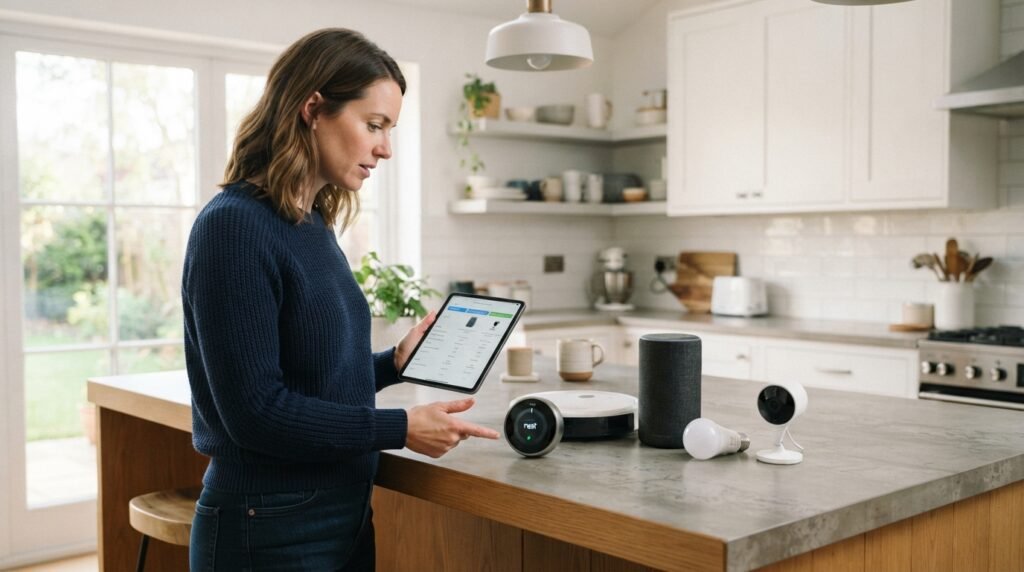
One outlet can be an inexpensive-looking starting point, but the right category depends on the household task. Compare the five choices side by side before deciding.
Which of the Five Devices Fits Your Main Household Need?
The most useful first upgrade is the one tied to a task your household repeatedly forgets or finds inconvenient. Match the device to that specific pain point.
Check the first purchase constraint before comparing extra features. Yard coverage, door fit, HVAC support, screen use, and appliance ratings can rule out a poor match.
| Device category | Main household task | First purchase check | When it may not fit |
|---|---|---|---|
| Smart hose timer | Managing hose-fed watering | Faucet and irrigation layout | Yard needs fixed sprinkler zones |
| Smart lock | Managing door entry | Deadbolt fit and door alignment | Door hardware cannot support it |
| Smart thermostat | Adjusting indoor temperature | HVAC system support | Household prefers stable manual control |
| Smart display hub | Sharing a screen for controls | Need for a shared screen | Residents prefer fewer cameras or microphones |
| Smart plug | Controlling a suitable appliance | Plug rating and appliance load | Equipment needs continuous power |
The table is a starting point, not a ranking. A renter may favor a removable setup, while a homeowner may have more options for fixed systems.
Household routines also matter. A device can be a poor choice if the person who needs it cannot use its controls or does not want an app.
The best first device depends on a recurring pain point, not the number of functions it advertises. A single useful routine may matter more than a long feature list.
Once a category fits the task, check whether it works with the platform your household already uses.
How Should You Choose a Smart-Home Ecosystem?
A voice command may control one brand’s plug but fail to start another brand’s routine. The difference is often integration, not just voice support.
Voice-assistant support does not guarantee that devices share an app or work in one automation. Check the exact connection you expect to use.
Compare Alexa, Google Assistant, and Apple support
Alexa, Google Assistant, and Apple Home each offer ways to connect supported products. Interoperability means devices from different brands or platforms can work together.
In practice, a product may accept voice commands but lack access to a particular routine or shared control screen. The supported features can differ by platform.
The Amazon Smart Thermostat lists Alexa routines. The Google Nest Hub Max and Kasa HS105 list Google Assistant support.
| Platform | Shortlist connection to check | Before you buy |
|---|---|---|
| Alexa | Amazon Smart Thermostat routines | Confirm the routine supports the action you need |
| Google Assistant | Nest Hub Max and Kasa HS105 compatibility | Check voice controls and shared app features |
| Apple Home | Support for each exact model | Do not assume compatibility from the brand alone |
Check compatibility before building routines
Product versions can differ, and supported features may change. A model name alone does not confirm that every function works with your platform.
Check the manufacturer’s current compatibility listing for each device in a routine. Confirm the specific action, not only a general logo or assistant name.
For example, a voice command may switch a plug while a more complex routine fails to include it. Test the needed steps before adding several devices.
Confirm every link in a routine before you rely on it. That check can prevent a purchase built around an automation the products do not support.
Once the platform fits, consider the home itself. Network reach, wiring, door hardware, and outlets can still affect setup.
What Should You Prepare Before Installing These Devices?
A device can appear compatible on paper yet fail in a weak-signal spot or unsuitable installation. Check the home conditions first.
Test fit, power, network reach, and app access where each device will operate. A weak connection at the far end of a yard can disrupt outdoor control.
Check the home’s wiring, entry, and water setup
Use this five-item checklist before installing a smart home device:
- Confirm the faucet type, hose reach, and yard layout.
- Check the deadbolt, door alignment, and room for lock hardware.
- Verify thermostat support for the home’s HVAC system.
- Compare the outlet rating with the appliance load.
- Test Wi-Fi coverage and app access at the place of use.
These checks apply to renters and homeowners, though permission may be needed for wiring or hardware changes. Ask before making a change that affects the property.
An outdoor device may need a reliable connection at the far end of the yard. Test there with the phone and app you plan to use, not just beside the router.
Set up the network and a manual fallback
Confirm the device works with your network and phone before installing it in a hard-to-reach place. Follow the maker’s setup steps for account access and updates.
Do not rely on an app as the only practical control for an essential function. Keep another workable way to water, enter, or adjust a needed setting.
A network outage can affect remote access, even when the device still has local controls. Learn which functions continue to work without the app or internet.
Keep a manual fallback for tasks that matter when a connection drops. That plan makes a connected device less likely to become a point of failure.
Setup determines where a device can work and how you can reach it. Accounts, permissions, and sensors raise another issue: what information they expose.
How Can You Protect Privacy and Security in a Connected Home?
Convenience features often depend on accounts, permissions, or sensors that deserve regular review. Make time to check who has access and what each device can collect.
Use unique passwords, turn on two-factor authentication where offered, and remove access that is no longer needed.
Review account and device access
A connected device may link to a phone account, household profile, or guest permission. Review these settings when someone moves out or no longer needs access.
Use a password that you do not reuse on other accounts. Two-factor authentication adds another check when the service offers it.
| Device area | Information or access to review | Practical safeguard |
|---|---|---|
| Entry devices and guest permissions | Who can unlock or view entry activity | Remove old guest permissions |
| Camera or microphone devices | When audio or video can be accessed | Review camera and microphone controls |
| Accounts and household members | Who can sign in or manage devices | Limit access to people who need it |
Limit data and camera exposure
Check whether the device offers settings to pause or limit audio, video, or alerts. Use the controls that match how the household uses each room.
Review shared accounts and remove former residents or guests. Give each household member only the access they need to manage the device.
Keep software and account recovery details current. Those steps can help you regain control if you lose a phone or forget a password.
Make privacy checks part of normal household upkeep, not a one-time setup task. Revisit permissions after guests, roommates, or family needs change.
- Turn on account alerts for important sign-ins where available.
- Remove unused apps and old household profiles.
- Place cameras only where household members accept them.
- Review activity logs for access you do not recognize.
These steps reduce avoidable exposure, but no connected device is risk-free. Next, judge whether the devices are saving resources or time in your home.
How Can You Tell Whether a Smart Device Is Saving Resources?
An app’s activity screen does not prove that a device saved money or effort. Compare actual use before and after setup to see what changed.
Use a baseline and compare similar conditions, rather than trusting one week of results. Weather, occupancy, and routines can shift the numbers.
| Resource or task | Record before installation | Compare after setup |
|---|---|---|
| Outdoor watering | Water use across similar weeks | Water use for weeks with similar weather |
| Heating and cooling | Utility or thermostat records and weather | Records across comparable weather periods |
| Time spent on a recurring task | Minutes spent on the task each week | Minutes spent on the same task afterward |
For outdoor watering, compare water use during weeks with similar rain and temperatures. A dry spell against a wet week is not a fair test.
For heating and cooling, note utility use or thermostat records alongside outdoor weather. Similar occupancy and comfort settings make the comparison more useful.
For time, record how long the task takes before setup. Use the same task and period afterward, such as minutes spent adjusting a recurring routine each week.
Household schedules can change after installation. A vacation, guests, or a different work routine may affect resource use more than the device does.
A single week cannot establish lasting savings or payback. Track several comparable periods before deciding whether the change matters to your household.
Do not invent a value for saved time or energy if you cannot measure it. A small convenience may still matter, but it is a choice rather than proof of savings.
Once you know what changed, you can decide which household problem deserves attention first.
Which Upgrade Should You Buy First?
A device earns first place by solving a problem your household encounters regularly. Choose based on repeated friction, not on which product sounds most advanced.
Use a short decision path: name the problem, check fit, confirm platform support, and set a realistic measure of success.
Start with the recurring problem
A security concern may point toward better entry management, while missed watering may call for an outdoor control. Neither is right for every home.
Uncomfortable temperatures may make climate control a priority. Scattered controls may call for a shared screen, while a frequently forgotten lamp may need a simple outlet control.
Use these four steps to narrow your choice:
- Identify the household problem that happens again and again.
- Confirm the device fits the home and the task.
- Check that its platform supports the control you want.
- Choose a clear measure of success, such as fewer missed tasks.
Consider who uses the device
Think about the people who will use or live with the device. A control that works for one person may be hard for another person to manage.
Consider whether household members want a phone app, voice commands, or a physical control. Shared homes need a plan that does not leave one person with all the access.
A household with unreliable internet may do better with a simpler product. Residents who do not want app or voice control may prefer manual operation or no connected upgrade.
Choose the simplest option that solves the problem without adding friction for other people. A connected feature is not a benefit when nobody wants to use it.
Before buying, write down what success should look like. If the device cannot meet that goal in your home, pause and consider a simpler approach.
Even a well-chosen upgrade can add complexity. Some situations make a smart device unnecessary.
When Is a Smart Device Not Worth Adding?
You buy a connected device, then find its main feature duplicates a control you already use. In that case, the extra setup may add little value.
Skip or delay a smart device when it adds work without solving a real household problem.
A smart feature is not automatically a security or savings improvement. Keep the simpler control when it already works well.
Avoid features you will not use
These four reasons may make it sensible to wait or choose a simpler product:
- The device duplicates a feature you already use successfully.
- The installation does not fit your home or lease rules.
- Household members will not use its app or voice controls.
- Essential operation depends on a weak network or unavailable service.
A basic timer or manual control may already handle the task. An existing device can also be enough if everyone knows how to use it.
Consider how many steps a new product adds. Account setup, charging, app updates, and troubleshooting can outweigh a small convenience.
Keep essential controls dependable
Important functions should not depend on a network that often drops or a service you cannot reach. Keep a workable way to operate the device when its app fails.
A smart feature does not automatically make a home safer or reduce bills. Those results depend on fit, use, and the task the device actually handles.
Renters may also face limits on changes to a door, wall, wiring, or outdoor faucet. Ask for permission when an installation affects the property.
If the existing control is dependable and the new feature solves no recurring problem, keep what you have. More technology is not always a better fit.
Bring the choice back to one recurring task. Name it, then take one practical step to check whether a device can address it.
Conclusion
A smart-home upgrade is worthwhile when it solves a real routine problem without adding more friction. The best home technology fits the people, setup, and controls already in use.
Choose the household’s most persistent annoyance, then check the relevant device’s current compatibility and installation requirements before buying. That single check can rule out a poor fit before it costs time or money.
FAQ
What should a smart home have?
What are some cool household tech gadgets?
What is the best smart device for your home?
What are the top 10 smart home gadgets?
What are the coolest smart home devices?
What are some unnecessary smart devices?
What are the best smart home devices in 2026?
What are 10 must-have gadgets?
About the Author