
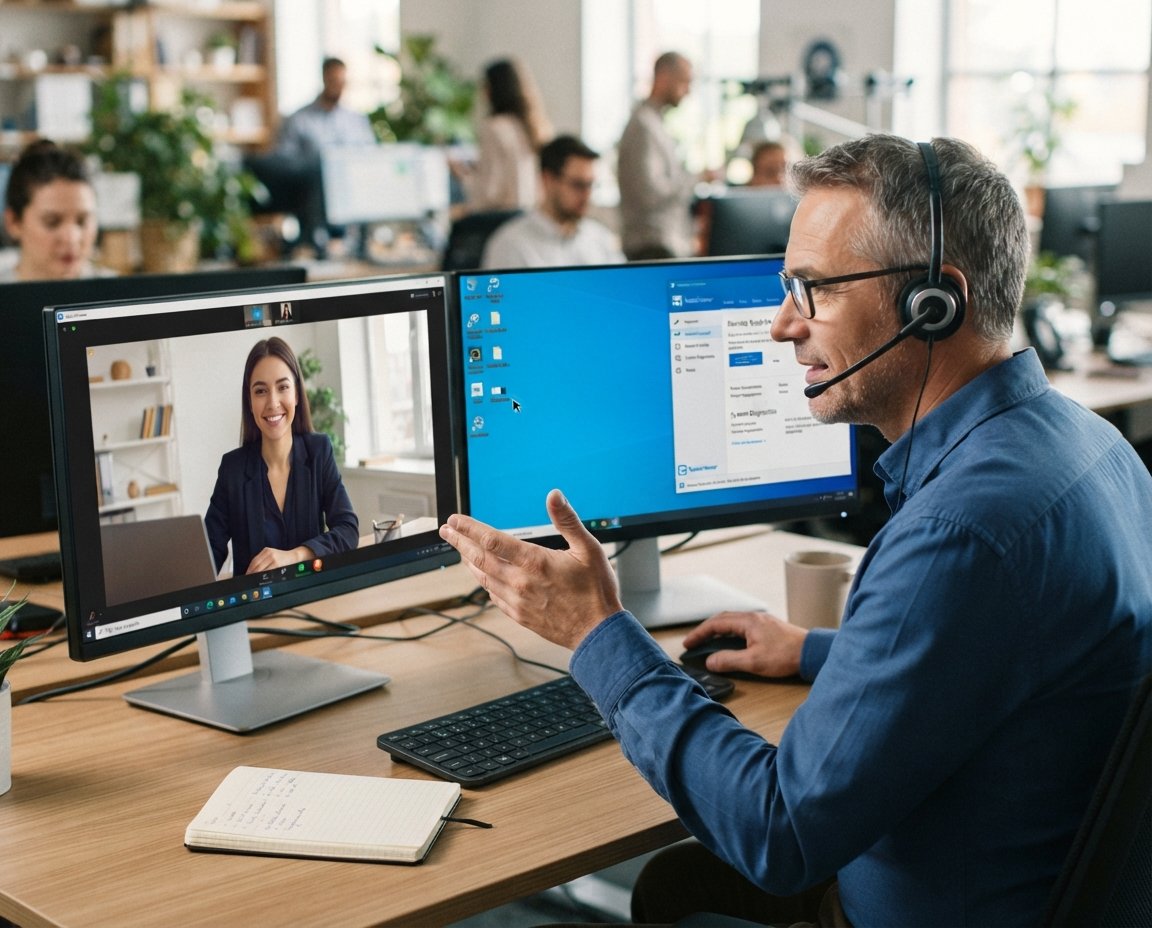
A support team choosing a remote tool should first decide whether it needs technician-led help, unattended maintenance, or both. Attended support is a remote session that starts with or requires participation from someone at the device being helped. For a typical technician-led help desk, Splashtop SOS is the strongest starting point.
RustDesk suits teams that want to self-host, while Zoho Assist gives a small team a hosted option. AnyDesk prices around outgoing connections, and ScreenConnect fits ConnectWise-centered operations. TeamViewer serves broad cross-platform needs; Chrome Remote Desktop can handle occasional free access, while Apple Remote Desktop manages Mac fleets.
Key Takeaways
- Start with Splashtop SOS for a conventional technician-led help desk.
- Choose RustDesk when the team can run its own connection infrastructure.
- Consider Zoho Assist for a small hosted support team.
- Compare AnyDesk by outgoing connections, not user count alone.
- Use Apple Remote Desktop to manage a network of Macs.
- Test real endpoints and support tasks before choosing a license.
A short trial using the team’s real endpoints and support tasks is a better fit test than a feature checklist alone.
8 Best Remote Support Software Worth Considering in 2026
For a conventional technician-led help desk, Splashtop SOS is the strongest starting point in this set, while the other options serve more specific workflows. The best remote support tools depend on the work technicians do and how each vendor counts licenses.
Compare the operating model before comparing pricing. A hosted service, a self-hosted relay, and a license based on concurrent sessions can lead to very different daily work.
| Tool | Best-fit situation | Operating model | Practical distinction |
|---|---|---|---|
| RustDesk | Teams that want control of their connections | Client with optional self-hosted server | Open-source server requires an operator |
| Zoho Assist | Small teams seeking hosted technician support | Web-based support product | Free tier has one technician |
| Splashtop SOS | Technician-led help desks | Concurrent technician licensing | One license can include an unattended-device allowance |
| AnyDesk | Teams sizing service by connections | Outgoing-connection licensing | User and device limits are separate |
| TeamViewer | Teams supporting many operating systems | Hosted remote access and support plans | Personal free use is not commercial use |
Use this comparison to shortlist tools, not to choose a plan: the license unit and endpoint mix shape the real cost.
The other evaluated options are Chrome Remote Desktop, ConnectWise ScreenConnect, and Apple Remote Desktop. Each serves a narrower need, from occasional access to Mac fleet management.
Teams may also encounter NinjaOne, JumpCloud, Datto RMM, Atera, Action1, AirDroid Business, RemotePC, and RealVNC Connect. These remote support tools cover adjacent needs, including device management and remote access.
Use the comparison to make a shortlist, then check the license unit and endpoint mix before comparing annual costs.
What should you compare before choosing a remote support tool?
A technician helping a user live needs a different connection workflow from one patching an authorized computer after hours. Attended support fits live troubleshooting, while unattended access supports approved work when nobody is at the device.
Choose the access mode that matches the task, then check the session limits. Video-conferencing screen sharing can help explain a problem, but it does not provide the same control or unattended workflow.
Attended help and unattended access
Attended support starts with or requires participation from someone at the remote device. The user may join a session to show a fault or approve the technician’s access.
Unattended access connects without someone at the remote computer, after setup and authorization. It fits maintenance, updates, and support for devices outside staffed hours.
Screen sharing in Zoom can have more lag than dedicated remote-access apps. A meeting tool also does not replace the controls and device management a support desk may need.
| Connection type | Must someone be present? | Common support use | Operational limitation |
|---|---|---|---|
| Attended support | Yes, at session start or during help | Live user troubleshooting | Depends on user participation |
| Unattended access | No, after setup and approval | After-hours updates | Needs prior setup and authorization |
| Video-conferencing screen share | Usually, in the meeting | Showing an issue to a colleague | Not a full remote support workflow |
Licensing, security, and workflow fit
Licensing can count technicians, outgoing connections, or managed devices. Those units affect how many technicians can work at once, even when a plan allows many named users.
Use this buyer checklist before comparing plans:
- Count peak concurrent technicians.
- Count devices that need unattended access.
- List every required operating system.
- Confirm needed session records and access controls.
Compare products only after the team has written down its peak simultaneous session count and unattended-device total.
Is RustDesk a good fit for teams that want to self-host?
RustDesk suits a team that wants control of its connection infrastructure and is prepared to run the server or relay. Self-hosting gives the team more control, but also makes server upkeep part of support operations.
RustDesk Server OSS has no license fee or expiry in 2026. The client and Server OSS use the AGPL license, and Server OSS has no commercial-use classifier.
RustDesk Client connects devices, while the server or relay handles the connection path. Supported platforms include Windows, macOS, Linux, Android, and iOS.
Windows, macOS, and Linux hosts support file transfer and permanent-password unattended access. The iOS app is controller-only, so it can start a connection but does not act as a remote host.
Use this deployment checklist before putting devices into service:
- Choose where the server will run.
- Assign an owner for relay operation.
- Test the host and controller platforms.
- Confirm unattended access and file-transfer needs.
Confirm who will maintain the self-hosted connection path before treating the no-license-fee server as a no-cost deployment.
Does Zoho Assist work for a small support team?
Zoho Assist is a practical starting point for a small team that wants hosted support and can work within the free plan’s limits. One technician can run one concurrent session, unlimited attended sessions, and unattended access to up to five computers in 2026.
The free plan excludes file transfer, reboot and reconnect, and custom branding. That may suit a solo technician who handles simple live sessions and only a few unattended computers.
Paid Remote Support plans cost $10 per technician per month for Standard, $15 for Professional, and $24 for Enterprise, billed annually in 2026. The higher tiers suit teams that need features excluded from the free option.
Zoho’s Unattended Access plans use a different structure: Standard costs $10 per month, and Professional costs $15, billed annually in 2026. Both include unlimited technicians, unlike the technician-based Remote Support plans.
A solo technician may find the free plan enough if five unattended computers cover the workload. A team that needs file transfer or reboot and reconnect should compare paid features and the right product family.
Match the paid tier to the workflow first, then check whether the quote is for Remote Support or Unattended Access.
Which Splashtop plan fits a help desk?
Splashtop SOS is the clearest fit here for a help desk that needs public concurrent-technician pricing plus attended and unattended support. SOS licenses start at $22 per month per concurrent technician, billed annually at $259 or $399 per technician in 2026.
SOS offers either 10 or 300 unattended computers per license. It supports attended sessions on Windows, Mac, and Linux computers, plus iOS and Android devices.
When a subscription has multiple licenses, up to three technicians can collaborate in one SOS session. That can help a team resolve a complex issue without handing the session between technicians.
Before licensing, check these four items:
- Count simultaneous technicians.
- Count unattended computers.
- List the endpoint platforms in use.
- Decide whether technicians need to collaborate.
Solo, Pro, and Performance are separate remote-access plans, not SOS help desk license options. Solo starts at $6 per month, billed annually at $72, and includes unattended access, file transfer, and remote printing.
Pro starts at $8.25 per user monthly, billed annually at $99, and lets up to three users connect to one computer. Performance starts at $13 per user monthly, billed annually at $149, with 4:4:4 color accuracy and 240 FPS capability.
Choose the 10-computer or 300-computer SOS license by the fleet size the team actually administers.
When does AnyDesk make sense for remote support?
AnyDesk is worth considering when connection responsiveness matters and the team is willing to size its subscription by concurrent outgoing connections. Connection count matters more than the number of licensed users during a busy support shift.
AnyDesk’s annual-billing rates in 2026 are $28.90 monthly for Solo, $49.90 for Standard, and $111.90 for Advanced. Ultimate requires a custom quote.
Solo supports one user, one outgoing connection, and up to 100 managed devices. Standard supports up to 20 licensed users and 500 managed devices, with one concurrent connection included.
Advanced supports up to 100 licensed users and 1,000 managed devices, with two concurrent connections. The plan comparison lists one connection for Solo and Standard, two for Advanced, and five users for Ultimate.
Managed-device limits are 100, 500, 1,000, and 2,000 for Solo, Standard, Advanced, and Ultimate. These are separate from the user and connection limits, so a large device allowance does not add technician capacity.
Paid subscriptions are annual. The free version is for personal use, and professional users need a license in 2026.
Model the busiest support period, since a plan’s user allowance does not increase its included concurrent connections.
Is ConnectWise ScreenConnect suited to an MSP or IT help desk?
ScreenConnect fits MSPs and IT departments that want a support product with a public plan ladder and a ConnectWise workflow. Annual-only plans include distinct limits for unattended agents and simultaneous sessions.
One includes 10 unattended agents and one session per technician; Standard includes unlimited agents and three sessions. Premium includes unlimited agents and 10 simultaneous sessions per technician.
One costs $30 per month billed annually, Standard costs $45, and Premium costs $55 per concurrent technician monthly with annual billing. Each plan is sold annually, so the session limit should match daily demand.
The Extension Library lists more than 100 integrations. That can help teams connect support work with tools already used in ConnectWise-centered operations.
Review these listed security controls:
- AES-256-bit encryption.
- Two-factor authentication.
- Audit reports.
- Granular access management.
These controls address different risks: encryption protects session traffic, while reports and access rules help teams track technician actions.
Check whether the entry plan’s single simultaneous session is enough before choosing it for a multi-technician desk.
Is TeamViewer worth it for cross-platform support?
TeamViewer is a familiar option for teams supporting a mix of desktop and mobile operating systems. Its platform range includes Windows, Mac, Linux, iOS, and Android in 2026.
Free remote access is for personal, non-commercial use. Business users need a commercial subscription, and the listed starting prices apply to different products.
Individual remote access starts at $24.90 per month in 2026. Team plans start at $120.90 per month, and both categories use annual subscriptions.
The individual option fits a person who needs remote access, while a team plan serves shared business support. The prices are not interchangeable because the intended users and work differ.
Subscriptions renew every 12 months unless canceled by support ticket or in text form. The notice must arrive at least 28 days before the current term ends.
Put the 28-day cancellation notice on the renewal calendar when evaluating an annual subscription.
Can Chrome Remote Desktop handle business support?
Chrome Remote Desktop can work for occasional access when free remote connections matter more than a dedicated help desk feature set. Organization-level policies let administrators apply controls to managed accounts.
Chrome Remote Desktop is free, but it does not provide a self-hosted control plane. Its policy controls do not make it a full technician help desk workflow.
A small business might use it when a technician occasionally helps an employee signed into a managed account. That is a narrower job than assigning technicians, tracking formal support sessions, or managing a fleet through a dedicated service.
Remote access can be enough for a one-off task, such as helping a staff member reach a work computer. A team with repeated customer sessions may need clearer technician licensing and session records.
Choose a paid technician platform if the workflow requires a formal session record or a dedicated support license.
What does Apple Remote Desktop offer Mac teams?
Apple Remote Desktop is most relevant when technicians manage multiple Macs on the same network. Its focus is fleet management, rather than ad hoc customer support across mixed platforms.
Apple Remote Desktop manages multiple Mac computers across a network. That makes it a fit for an organization’s Mac estate, not necessarily a help desk supporting customers’ varied devices.
Version 3.10 requires macOS Sequoia 15.5 or later. Features introduced for Tahoe 26 require macOS Tahoe 26 or later.
A team that manages Macs on one network can use the product for central work across those computers. A technician helping outside customers may need a tool designed for remote sessions across different operating systems and locations.
Verify the managed Macs meet the required macOS version before relying on Tahoe 26 features.
Which free and Mac remote support options fit your setup?
Free access is not the same as a free commercial help desk, and the difference matters most when technicians need unattended support. Usage terms and device limits vary across free remote support options.
Among the 8 best remote support software worth considering in 2026, RustDesk Server OSS, Chrome Remote Desktop, and Zoho Assist offer different free terms. RustDesk Server OSS has no license fee, expiry, or commercial-use classifier in 2026.
Free remote support options
Chrome Remote Desktop is free with organization-level policies, while Zoho Assist’s commercial free plan allows one technician. TeamViewer’s free access is personal and non-commercial, and Splashtop’s free version works only over a local network in 2026.
For the 8 best remote support software worth considering in 2026 on Mac, TeamViewer suits personal internet access, Apple Remote Desktop manages Mac fleets, and RustDesk supports macOS hosts.
| Option | Free or licensing condition | Mac or platform role | Key limitation |
|---|---|---|---|
| RustDesk | Server OSS has no license fee | macOS host and multi-platform client | Team operates its own server or relay |
| Zoho Assist | Free commercial plan for one technician | Hosted remote support | Free tier excludes file transfer |
| TeamViewer | Free for personal, non-commercial use | Mac and cross-platform access | Free use does not cover business support |
| Chrome Remote Desktop | Free | Remote access with organization policies | No self-hosted control plane |
Choose a free option by its allowed use and support workflow, not by the word “free” alone.
Remote support for Mac
RemotePC and Splashtop support drag-and-drop file transfer between macOS and Windows computers. That can matter when a help desk moves logs or other files across a mixed Mac and PC fleet.
Apache Guacamole is an Apache 2.0-licensed HTML5 gateway to RDP, VNC, and SSH. MeshCentral is an Apache 2.0-licensed self-hosted fleet system with web-based desktop, terminal, and file management.
Remmina supports RDP, VNC, SSH, and SPICE on Linux and Unix-like systems. TigerVNC, TightVNC, and UltraVNC are free VNC implementations; plain VNC has no built-in NAT traversal or relay.
Test the Mac and Windows combinations the team actually supports, including file transfer, before choosing a cross-platform tool.
Conclusion
The right choice is the one whose license model and access controls match the support team’s real workload. Splashtop SOS is the lead candidate for a conventional technician help desk, while RustDesk fits teams prepared to self-host.
Zoho Assist suits smaller hosted support teams that can work within its plan limits. Other tools may fit a specific connection model, operating system mix, or management task better.
Before signing up, map the endpoints technicians support and count peak concurrent sessions. Run the finalists through a short pilot with representative endpoints, peak-session demand, and the security controls the team requires.
FAQ
What is the difference between attended support and unattended access?
Can a free remote support tool be used for business?
How many remote support licenses does a help desk need?
Can remote support software transfer files between Mac and Windows?
Can a technician support an iPhone or iPad remotely?
Is self-hosted remote support always free?
Can video-conferencing screen share replace remote support software?
About the Author